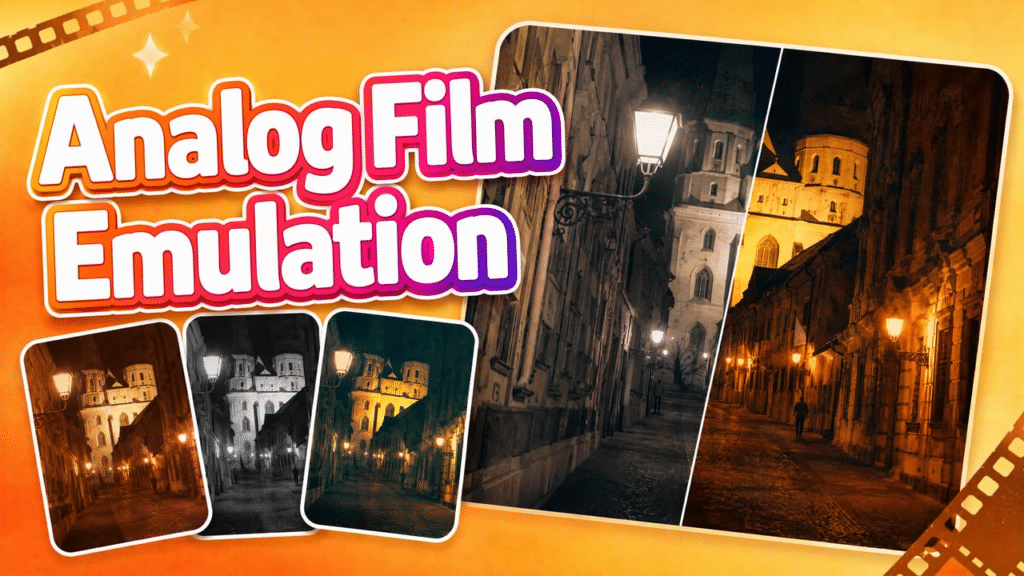
To make a digital photo look like film, pick a film-style preset that roughly matches the look you want. Next, set the overall strength of the effect, then adjust the grain and halation until the texture and highlight glow look natural. Before you download, compare the result with the original. You’ll usually get the best result by adjusting each setting in small steps and checking the photo as a whole each time.
This guide walks you through that workflow with Nero AI Film Emulation, an online tool that applies film-style color, grain, and halation to digital photos. You start by choosing a preset category, then adjust each control to create your final image.
What Makes a Photo Look Like Film?
A “film look” isn’t one single effect. It comes from a few visible qualities working together, and each step in this guide adjusts one of them. Knowing what each quality does makes it much easier to decide which setting to change when something looks off.
Color. Film-style images often render color differently from a typical digital photo. Tones may lean warmer or cooler, look more muted or more saturated, or shift in key areas such as skin, skies, and foliage. Your preset sets this starting palette.
Contrast and tone. Film looks often change how shadows and highlights feel, making them softer, deeper, or more dramatic. Your preset and the overall effect strength control how much the image changes from the original.
Grain. Digital photos tend to look smooth and clean. Grain adds a fine, visible texture that makes the image feel more tactile.
Halation. In some film photos, bright light spreads into the surrounding area as a soft glow. Adding halation recreates that glow around highlights.
Getting a convincing result comes down to balance. If any one of these qualities is pushed too far, the photo starts to look like it has a filter on it rather than looking like film.
Step 1: Start with a Suitable Photo
Choose the photo you want to transform and take a moment to look at the original. Notice its colors, its brightness and contrast, and the details that matter most—a face, a textured wall, a bright sky. Remembering these makes it easier to tell later whether the film look is improving the image or getting in the way.
Most ordinary digital photos work well, including portraits, street scenes, and landscapes. Images that are very dark, already noisy, or heavily compressed can give less predictable results. Film grain added on top of existing digital noise or compression artifacts can make the image look messy rather than filmic. If you can, start with the cleanest version of the photo you have.
Nero AI Film Emulation accepts common formats such as JPG, PNG, WebP, and AVIF. RAW files are supported with a Pro Pass.
Step 2: Upload Your Photo and Choose a Starting Preset
Open Nero AI Film Emulation and upload your photo. Then choose a preset category:
- Color Negative
- Slide Film
- Black and White
- Special Film
Your first preset is just a starting point. You’ll fine-tune the look in the next steps, so you don’t need to find the perfect choice right away.
If you’re not sure which category to use, try two or three on the same photo and compare them. Look at three things:
- Color rendering: How do skin tones, skies, foliage, and other key colors change? Do they look warmer, cooler, more muted, or more saturated?
- Contrast: Are the shadows deeper or more open? Do the highlights feel harsh or soft?
- Overall mood: Does the result feel calm, nostalgic, bold, or dramatic? Does that mood suit the photo?
Choose the preset that gets closest to the look you have in mind. The best choice depends on the photo and your goal, so there isn’t a single “correct” preset for portraits, streets, or landscapes.
Step 3: Adjust the Overall Effect
Once you’ve chosen a preset, set how strong the overall effect should be. This is usually the most important adjustment, so do it before you adjust the finer texture controls.
Compare the processed photo with the original. If the colors or contrast have changed so much that the photo no longer looks like itself, reduce the effect. If you can barely see the film look, increase it a little. Make small changes and check the whole image after each one.
Step 4: Fine-Tune Grain and Halation
Grain and halation add much of the texture and atmosphere we associate with film. Each one changes a different part of the image, so you need to look in different places when adjusting them.
Grain
Grain adds visible texture across the photo. To judge it, compare two kinds of areas:
- Smooth areas, such as skies, walls, and skin, where grain is easiest to see.
- Detailed areas, such as hair, foliage, fabric, and edges, where grain can compete with fine detail.
Grain works well when it adds a subtle, tactile texture without hiding the subject. If smooth areas start to look gritty or important details become harder to see, lower the Grain Power slider. If the photo still looks too clean and digital, add a little more.
Halation
Halation adds a soft glow around bright areas. To judge it, look at:
- Bright highlights, such as lamps, reflections, sunlit edges, and bright windows.
- The edges around those highlights, where the glow spreads into nearby areas.
A light glow can soften harsh highlights and give the photo a more cinematic feel. Reduce halation if the glow spreads too far, pulls attention away from the subject, or makes the edges around highlights look hazy. If your photo has few bright areas, changes to halation may be less noticeable.
Step 5: Preview, Check, and Download
When your settings are ready, start processing and preview the result. Compare it with the original, first at normal viewing size and then zoomed in on the details that matter most. Check three things:
- Overall look: Do the color, contrast, and mood match what you wanted?
- Texture: Does the grain add character without hiding important details?
- Highlights: Does the glow around bright areas look natural rather than distracting?
If something doesn’t look right, fix the biggest problem first. When the whole image feels too heavy, lower the overall effect before changing anything else. If only the texture or highlights look off, adjust Grain or Halation. Process the photo again, compare once more, and download the version that best matches the look you want.
Make Your Own Film Look
Creating a convincing film look is less about any one setting and more about balance. Start with the preset that gets you closest to the look you want, set the overall strength, then refine the texture and highlights while comparing the result with the original. Small adjustments usually look more natural than heavy ones.
Ready to try it? Upload a photo to Nero AI Film Emulation and create your own film-style edit.