Nero AI Agent is Nero AI’s new conversational assistant for creating and editing images. Describe what you want, review the result, and follow up with the changes you’d like to make. You can develop an image in the same chat rather than treating every prompt as a separate project.
That matters when your first result is close, but not quite right. The background looks good, but the product needs a more polished display. Instead of explaining the whole idea again, you can ask for a wooden display base beneath it. Nero AI Agent continues editing from the previous result by default, so your next prompt can focus on what you want to change.
How Does Nero AI Agent Work?
You can start with a text prompt, upload reference images, or choose a template. Use text when you have an idea you want to visualize. Upload an image when you have a photo to edit or a visual reference to work from. Templates provide a starting point for tasks such as changing a background or creating a product visual.
The workshop supports up to five reference images. When using several, explain what you want from each one: the subject from one image, for example, and the setting or visual style from another.
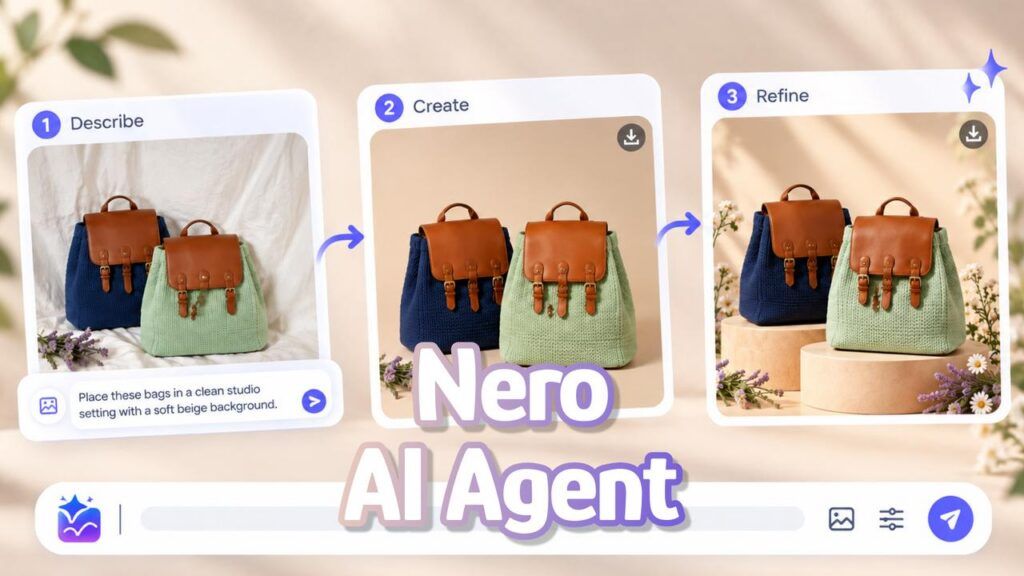
The process is Describe → Create → Refine. Describe the goal, choose your output settings, and generate the first version. Then inspect it and send a focused follow-up. The model, aspect ratio, and resolution controls sit alongside the prompt, so you can choose your settings before sending a request.
What You Can Create with Nero AI Agent
Nero AI Agent’s workshop presents image creation as a range of practical starting points rather than a single-purpose tool. You might be preparing a product or campaign image, reshaping a personal photo, restoring an older picture, or adapting a visual for a particular social format.
The examples also show smaller finishing tasks—improving a dim or overexposed image, removing an unwanted object, or extending the canvas—alongside more substantial scene changes. Browse the gallery to find a direction that fits your project, then describe what you want to make or adjust.
The gallery shown here is only a sample, not a complete list of the available templates. Treat the examples as inspiration: you can start from one of them or describe a different visual goal in your own words.
Walkthrough: Create and Refine a Product Image with Nero AI Agent
This product-photo test starts with two woven bags photographed on white fabric: one navy, one pale green, both with brown flaps and metal fasteners.
Step 1: Upload the Photo and Generate the First Version
Upload the product photo and describe the setting you want. In this test, the first prompt was:
Place these bags in a clean studio setting with a soft beige background.
Before generating your own image, choose the model, aspect ratio, and resolution, and check the displayed credit cost. The settings shown later in this test are Balance Nano Banana 2, 1:1, and 1K. Six credits is the amount shown for these requests, not a fixed cost for every model or setting.
Step 2: Explore Another Version in the Same Chat
To explore another interpretation, the next prompt repeated the studio direction without re-uploading the photo:
Place this product in a clean studio setting with a soft beige background.
Step 3: Use Regenerate to Try an Alternative
If you want another version of a result rather than a new conversational instruction, select Regenerate beneath its image card. In the test, this opens a panel with model, aspect-ratio, and resolution options. Review those settings and the displayed cost, then press the blue Regenerate button.
Use a follow-up prompt when you know what to change. Use Regenerate when you want another version of the current request.
Step 4: Refine the Scene with a Specific Follow-Up
After regeneration, the conversation continued in the same chat with a specific request:
Add a light-colored, cylindrical wooden base beneath the product.
Unlike the earlier repeated studio prompt, this instruction names a concrete change. You can see what the follow-up adds and check whether the rest of the scene still fits your goal. Inspect the bags and their details again rather than assuming everything outside the requested change remains identical.
Step 5: Review Your Preferred Version and Download
Compare Original → First Generation → Another Version → Regenerated Alternative → Targeted Refinement. Choose the image that best fits your purpose, not simply the newest one.
Before downloading, inspect the woven texture, flap shapes, straps, fasteners, and proportions against the original photo. The studio versions change the product presentation, so check that the image still represents the bags accurately enough for its intended use.
Select the download icon at the upper-right corner of your preferred image card. Each completed result shown in this test has its own download control, so you can save the version you choose.
Nero AI Agent or a Dedicated Tool?
Choose Nero AI Agent when you want to explore a creative direction or develop an image through several conversational edits.
Choose a dedicated tool when your task is already specific: Image Upscaler for enlargement, Photo Restoration for a restoration task, or Background Remover for background removal.
This is a choice based on the job, not a claim that one option is always faster, cheaper, or better. For a broader introduction to Nero’s tools, see Meet the Nero AI All-in-One Workspace.
Frequently Asked Questions
Do I need to upload the image again to make a follow-up edit?
No. In the product-photo test, the next prompt was sent in the same chat without uploading the original again. The follow-up worked from the previous result.
What’s the difference between a follow-up prompt and Regenerate?
Use a follow-up prompt when you want to request a particular change, such as adding the wooden display base in this walkthrough. Use Regenerate when you want another interpretation of the current request. The results may vary, so review each version before deciding which to keep.
Will the image keep every detail I didn’t ask to change?
Not necessarily. In this test, the bags remained recognizable, but their arrangement changed and floral details appeared without being requested. Check the product’s important features in each result, especially before using it in a listing or campaign.
Ready to Create and Refine Your First Image?
Start with one photo or one template, describe the first change, and refine what needs attention. Describe → Create → Refine gives you a practical way to develop an image without having to settle on the first result.