

One image rarely needs only one fix.
A product photo may need a cleaner background. Then you notice it is too small for the store. Once that is fixed, the file is too large to upload. Before long, a simple image has turned into several separate jobs.
That is the problem behind the new Nero AI homepage. We redesigned it around the work people are trying to finish, whether that means improving one photo, preparing an entire folder, or bringing image processing into an existing business workflow.
More than a collection of AI tools
The Nero AI All-in-One Workspace is a central starting point for different kinds of image work.
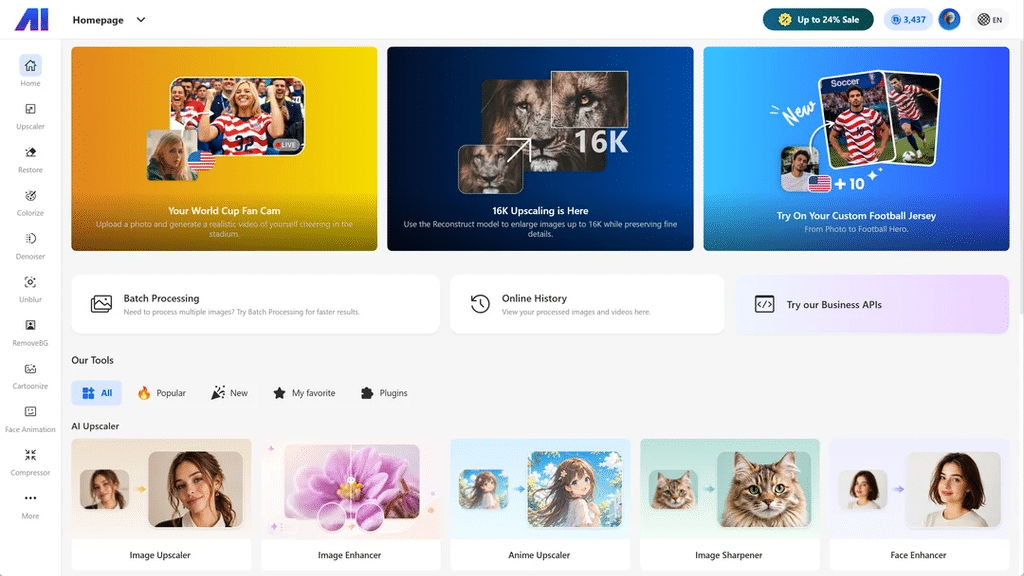
The left sidebar gives you quick access to services such as Upscaler, Restore, Colorize, Denoiser, Unblur, and Remove Background. Featured cards at the top introduce current tools and model updates, while the Our Tools library lets you browse everything by All, Popular, New, My favorite, or Plugins.
The homepage also covers work that goes beyond editing one image. Batch Processing is available when the same task needs to be applied to multiple files. Online History lets signed-in users return to processed images and videos. Plugins bring selected Nero AI features into platforms such as Figma, while Business APIs are intended for companies that want to add image processing to their own products or internal systems.
Images do not pass automatically between the web tools. To continue editing an image, download the result and upload it to the next service. The all-in-one part is the access: individual tools, larger jobs, recent results, plugins, and business options now have one shared starting point.
Why we designed an all-in-one homepage
A list of AI tools works well when you already know exactly what you need. It is less helpful when the job involves several stages or when you are not sure which tool should come next.
A seller preparing a new product listing may need to remove a background, enlarge the image, and compress the final file. A designer may prefer to perform some of those tasks through a Figma plugin. A store with hundreds of product images may need batch processing or an API instead of repeating the same browser based task.
These users are working with the same underlying image technology, but they need different ways to access it.
That is the idea behind the new homepage. It keeps the individual tools easy to reach while adding routes for larger jobs and repeat use. You can start with one image, move to a batch when the process is settled, find an earlier result in Online History, or look at plugins and APIs when the work belongs inside another product.
The homepage does not remove every manual step. Instead, it gives the different parts of Nero AI a clearer home.
How to prepare product images for an online store
Suppose you have received a folder of product photos from a supplier. The products are photographed against inconsistent backgrounds, some files are too small, and the finished images need to be light enough for an online store.
Here is one way to handle that job with the Nero AI workspace.
Start with one product photo
Öffnen Sie ai.nero.com and choose Remove Background from the sidebar or the Our Tools section.
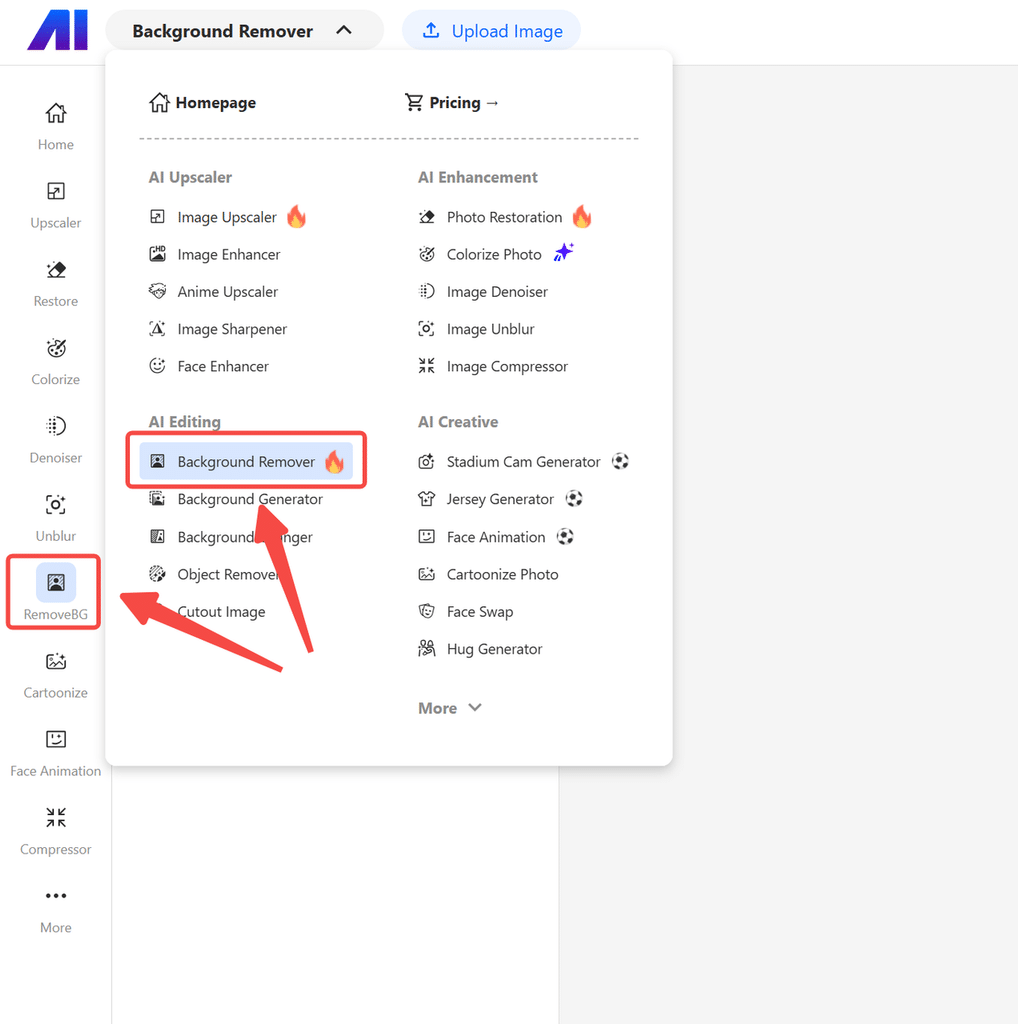
Upload one representative product image rather than the whole catalog. A single test image lets you check how the tool handles the shape of the product, its edges, and any difficult areas such as glass, fur, shadows, or reflective surfaces.
Download the result and give it a clear filename, such as shoe-blue-background-removed.png. Keep the original file in a separate folder.
Check whether the image is large enough
If the product image is too small for your store, return to the homepage and open Image Upscaler.
Upload the background removed image or the completed composition, depending on how you plan to use it. The featured Reconstruct model can enlarge images up to 16K, although most online stores will need a much smaller output. Check your store or marketplace requirements before choosing the final dimensions.
Zoom in on product labels, stitching, edges, and small patterns after processing. An enlarged image should still represent the product accurately.
Move to Batch Processing when the test works
After you are satisfied with the first result, return to the homepage and open Batch Processing.
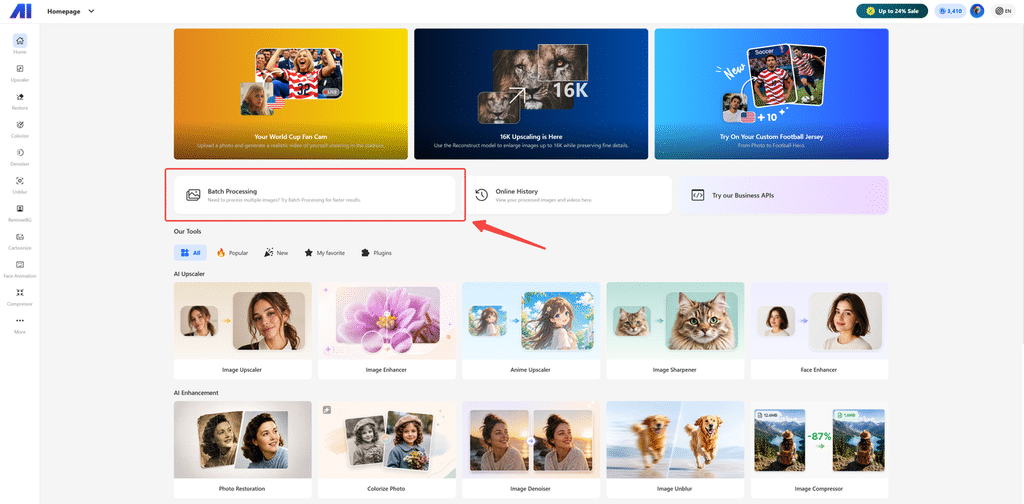
Batch Processing is intended for jobs involving multiple images. It can reduce repetitive work when a set of product photos needs the same kind of treatment.
Before processing the full catalog, test a small group. Product photos with transparent materials, fine jewelry, loose hair, or complex shadows may need separate attention. A batch setting that works for a solid object may not work equally well for every category.
Find earlier results in Online History
If you need to return to recently processed work, open Online History from the homepage.
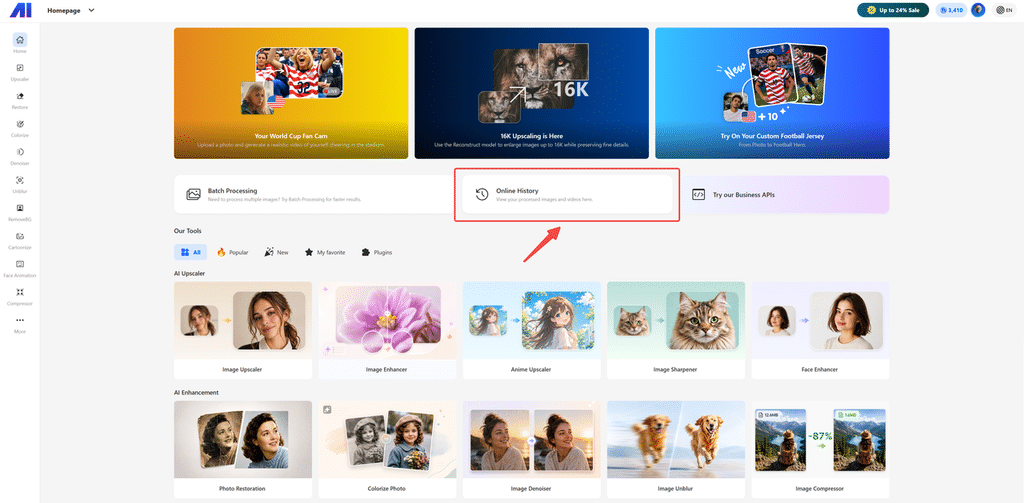
Online History provides access to processed images and videos associated with your account. It is useful when you need to compare results, recover a recent version, or continue a job later.
For important commercial assets, keep your own organized copies as well. Use filenames that identify the product, edit, and version instead of relying only on browser history.
Explore the Business API option
If your store handles a larger number of product images or needs image processing inside an existing system, return to the homepage and select Try our Business APIs.
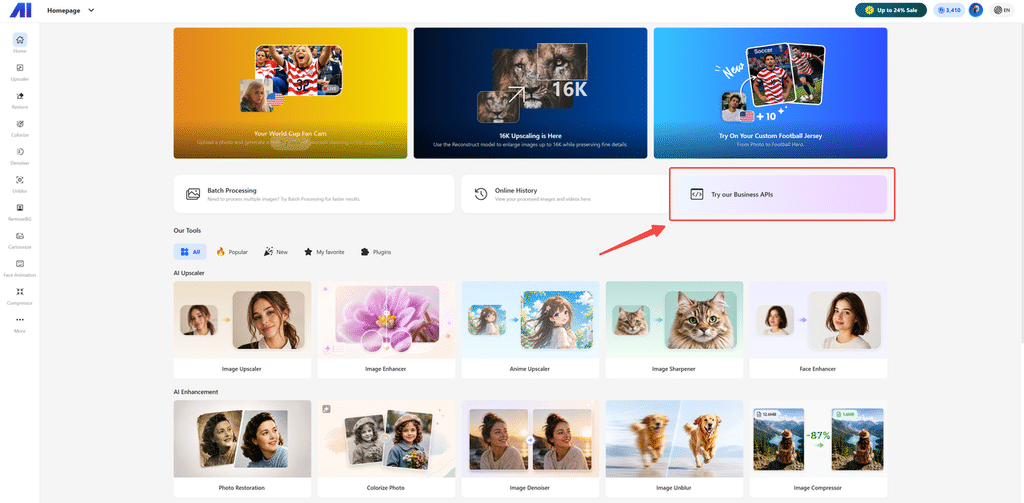
This entry takes you to Nero AI’s business services, where you can review available APIs and integration options. It is a useful next step when processing images manually through the web tools or Batch Processing no longer fits the way your business operates.
Who is the workspace for?
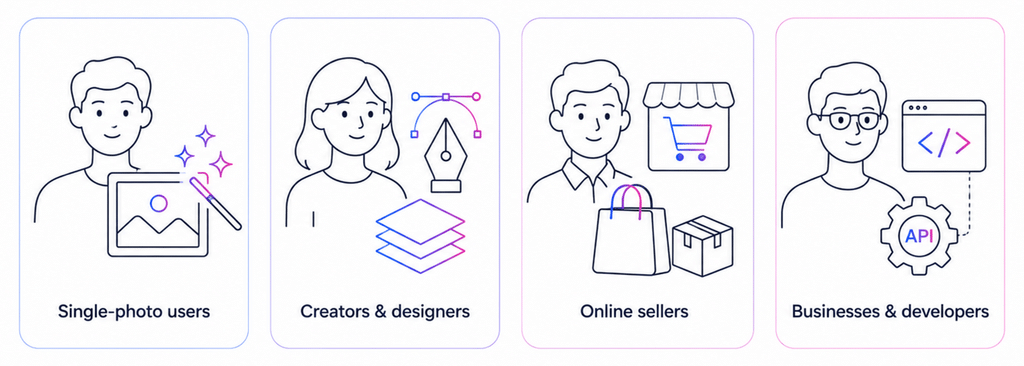
Someone editing one photo can use the sidebar to reach the required tool quickly. There is no need to build a long workflow when one service solves the problem.
Creators and designers can browse the full library, save favorites, and check the Plugins section for tools that fit their existing software.
Online sellers can test a process on one product image, move to Batch Processing for a larger catalog, and explore Shopify or WooCommerce related options where available.
Businesses and developers can go directly to the API section when browser based processing does not fit the volume or product experience they need.
Frequently asked questions
What is the Nero AI All-in-One Workspace?
It is the central homepage for Nero AI’s web tools, Batch Processing, Online History, plugins, and Business APIs. “Nero AI All-in-One Workspace” is used in this article as a consistent name for the new homepage experience.
Do images move automatically between Nero AI tools?
No. If you want to use another web tool on the same image, download the first result and upload it to the next service.
Can I process several images at once?
The homepage includes a Batch Processing option for jobs involving multiple images. Test the settings on a small group before processing a large collection.
Where can I find images I processed earlier?
Online History displays processed images and videos associated with your account. Keep your own copies of important files as well.
What plugins are available?
The Plugins section includes Figma tools for background removal, image upscaling, and compression. The interface also presents options associated with Photoshop, Shopify, and WooCommerce. Check each listing for its current features and installation requirements.
Can a business integrate Nero AI into its own product?
Nero AI provides Business APIs for companies that want to add image processing to a website, application, or internal workflow. Check the Business API page for the available services, usage limits, documentation, and pricing.
Start from the new homepage
Besuchen Sie ai.nero.com and choose the route that matches the job in front of you.
Open an individual tool for a quick edit. Use Batch Processing when the same task applies to many images. Return to Online History for recent results, browse Plugins if you work inside another platform, or explore Business APIs for product integration.