
You carefully scanned your grandmother’s treasured wedding portrait from 1952, uploaded it to an AI colorization tool, and waited with anticipation. The result? Her elegant burgundy dress—the one she described to you countless times—came back bubble-gum pink. Your grandfather’s forest green Plymouth, the car he lovingly restored and drove for decades, now appears as an unnatural teal. The AI got close, but close isn’t good enough when you’re preserving precious family memories.
If you’ve tried colorizing old photos, you know this frustration. AI colorization has gotten pretty good, but you’re stuck with whatever the algorithm decides—even when you know it’s wrong.
What is AI Photo Colorization with Prompt Editing?
AI photo colorization with prompt editing combines automated colorization with text-based color control. After the AI applies initial colors, you refine specific elements using natural language commands—no photo editing skills required. This ensures historically accurate results that match your actual memories.
🌟Try Nero AI’s Advanced Colorization with Prompt Editing →
Traditional vs. Prompt-Based Colorization
Traditional AI Colorization:
One-click automated process • No control after generation • Colors based on statistical probability • Requires Photoshop to fix errors
Nero AI Prompt-Based Editing:
AI + user refinement • Text commands control any color • Matches your memory and historical accuracy • No technical skills needed
The Problem with Traditional AI Colorization
Most AI colorization tools operate as black boxes. You upload your image, the algorithm analyzes it, applies colors based on millions of training examples, and delivers a final result. If the AI decides your uncle’s Navy uniform should be royal blue instead of the regulation navy, or that your childhood home’s brick exterior was red when you distinctly remember it being brown, you’re out of luck. Your only options were to accept the inaccurate colors or spend hours manually painting corrections in photo editing software—a skill most people don’t have.
The technology behind AI photo colorization relies on deep learning models trained on vast datasets of color images. These models learn to predict plausible colors for grayscale pixels by recognizing patterns: grass is typically green, sky is usually blue, skin tones fall within certain ranges. But “typical” and “plausible” don’t mean accurate for your specific photo. The AI doesn’t know that your father’s prized 1967 Mustang was Candy Apple Red, not the cherry red the algorithm assigned. It can’t know that your great-grandmother’s eyes were hazel, not brown.
Fix AI Colorization Mistakes with Text Prompts
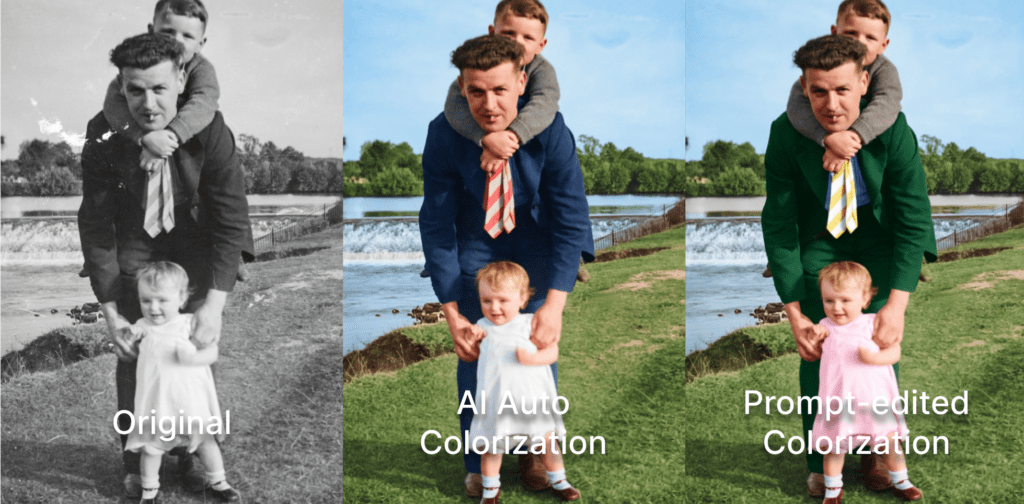
Nero AI’s new feature solves this. After the AI colorizes your photo, you can edit any color using simple text commands. No Photoshop. No complicated tools. Just type what you want changed.
Here’s how it works: The AI does the heavy lifting—applying colors, maintaining gradients, blending with lighting. You provide what the AI can’t know: that your dad’s car was forest green, not teal. That grandma’s dress was burgundy, not pink. Your memory plus AI speed.
How to Colorize Black and White Photos with Full Control
Here’s how to use it:
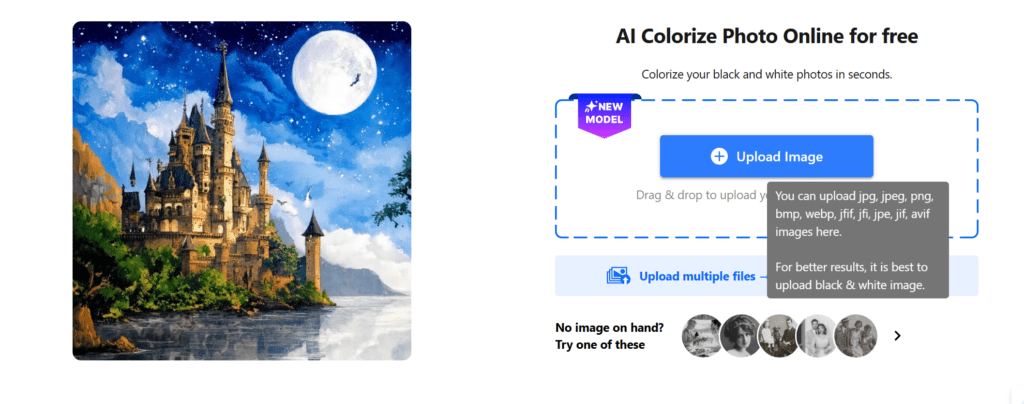
Step 1: Upload Your Black and White Photo
Gehe zu Nero AI’s colorization tool and upload your photo. It accepts JPEG, PNG, WebP, TIFF and other common image files up to 16MP (million pixels). High-resolution scans work best, but the AI can handle old prints too.
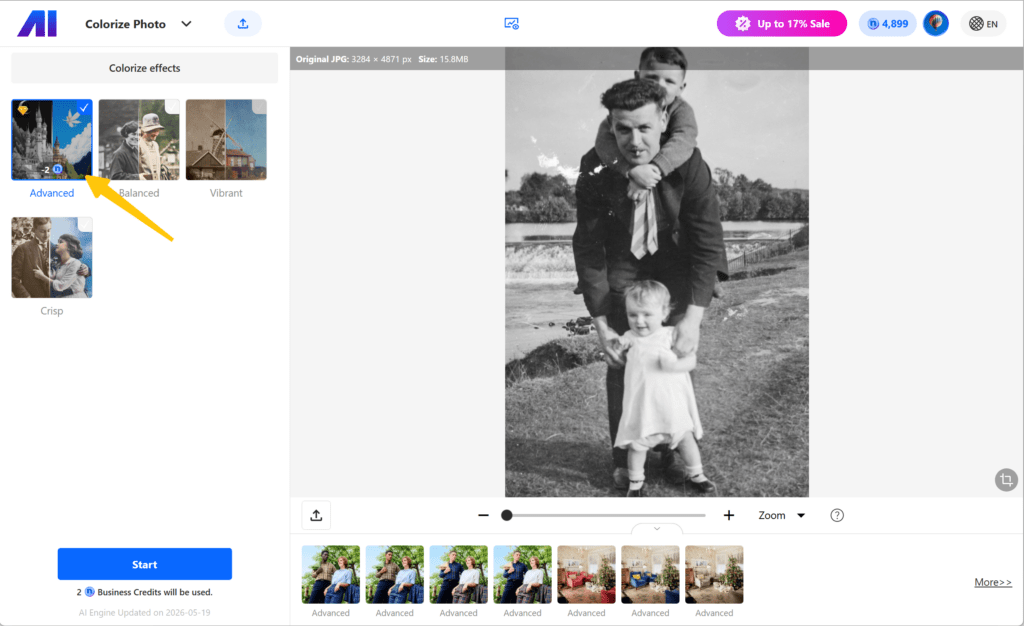
Step 2: Select the Advanced Model
Choose the Advanced model from the options menu. This matters because it’s the only model that supports prompt editing. The faster models don’t have this feature. Yes, it takes a few extra seconds, but you need it for the color control.
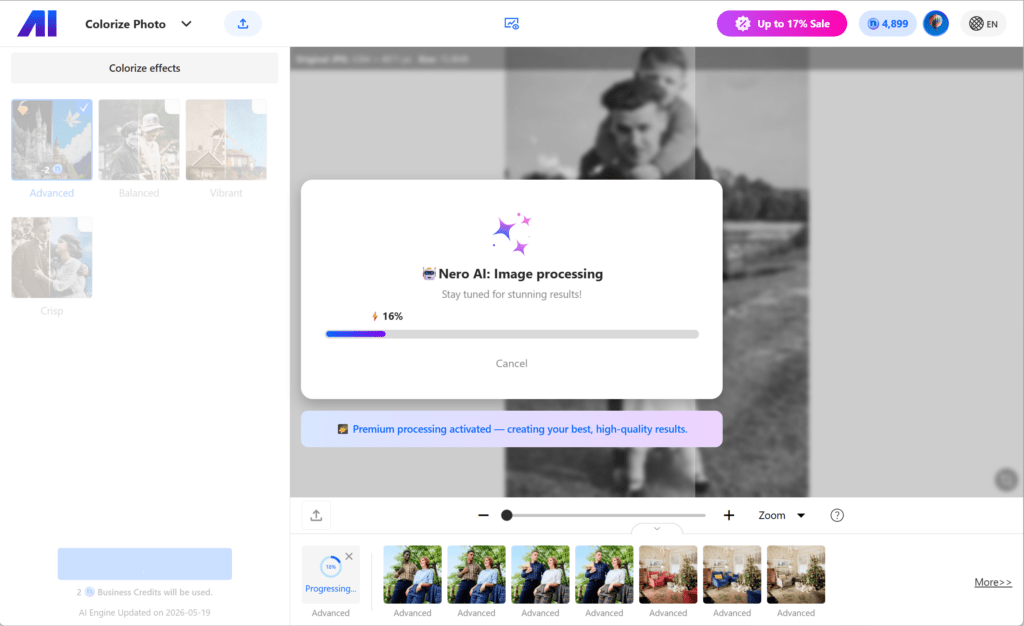
Step 3: Start the Colorization Process
Hit the “Start” button. The Advanced model analyzes your image—people, objects, backgrounds, clothing, vehicles—and applies colors based on training from over 10 million images. The initial result is usually 85-92% accurate. Not perfect, but a solid starting point.
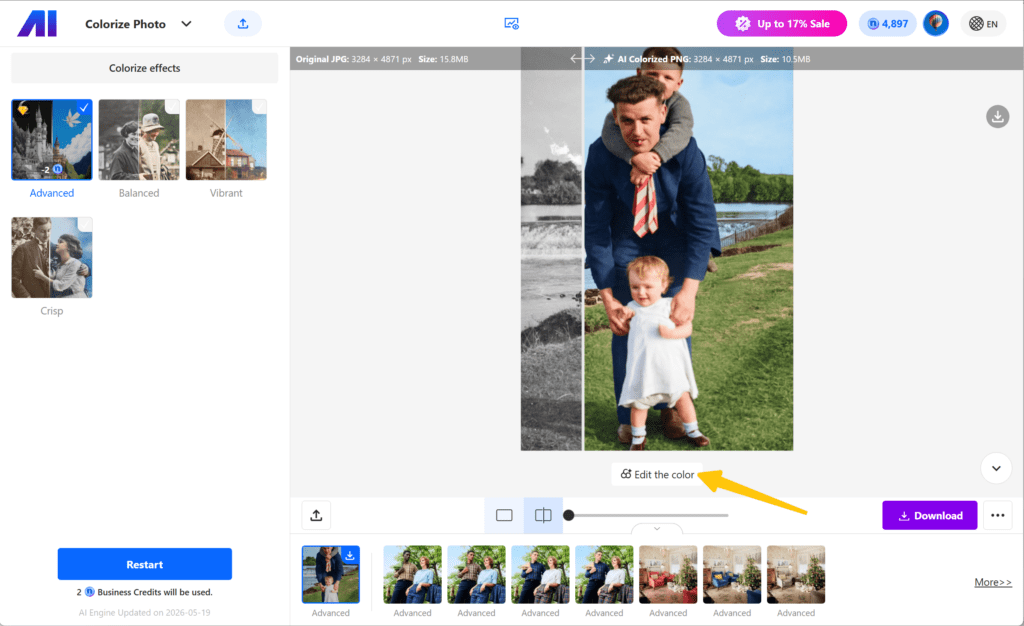
Step 4: Click “Edit Color” to Take Control
When colorization finishes, you’ll see the “Edit Color” button. Click it. Now you can fix any color using plain English—the same way you’d describe colors to a friend.
Step 5: Enter Detailed, Specific Prompts
Be specific with your prompts. “Make the dress red” is too vague. You won’t get the exact shade you remember. Instead, describe it in detail.
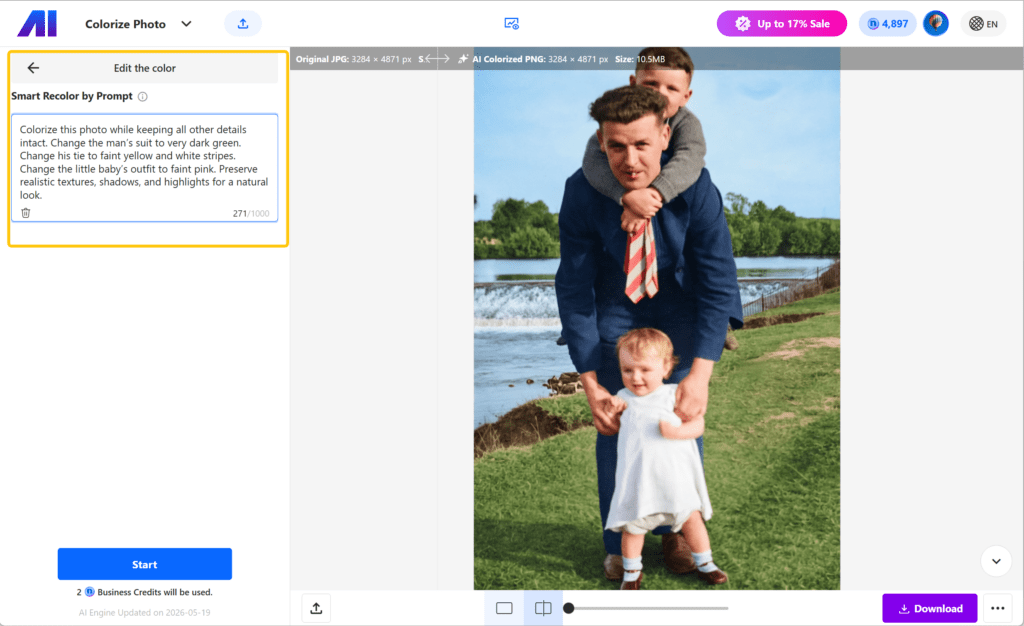
The more specific you are about shades, tones, textures, and context, the better the AI can interpret and execute your vision. Include details about:
- Specific color names: burgundy, navy, forest green, cream, charcoal
- Tone descriptors: deep, pale, vibrant, muted, warm, cool
- Material context: metallic silver, matte black, glossy red
- Historical context: “1940s military olive drab,” “Victorian-era deep purple”
You can make multiple edits, refining different elements of your photo until every color matches your memory or historical accuracy. Each prompt processes in 10-20 seconds, allowing you to iterate and perfect your colorized image without starting over.
Why This Actually Matters
Before this, you had two bad options: automated AI colorization (fast but wrong) or manual Photoshop editing (accurate but time-consuming and requires skills most people don’t have). This gives you a third option.
You get AI speed. The algorithm handles the technical stuff—color gradients, texture details, lighting. But you also get accuracy. You tell it what color that car actually was. The result: photos that look right and feel right.
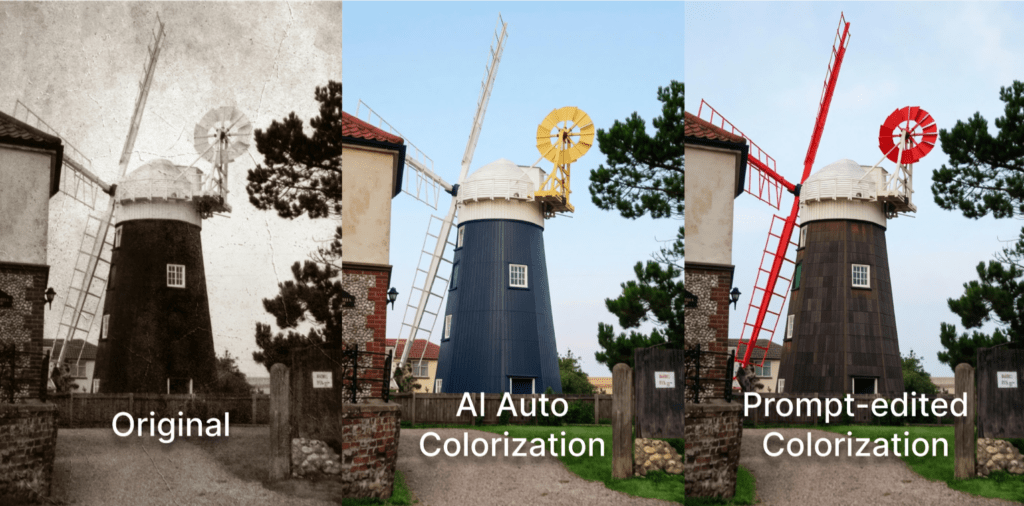
If you’re working with historical photos, this changes things. Military historians can match regulation uniform colors from records. Car enthusiasts can use factory paint codes. Genealogists can reference written descriptions or other period photos. You’re not guessing anymore.
Best Practices for Edit Colorized Photos
Tips for better results:
Use the Advanced model — It’s the only one with prompt editing.
Check the whole image first — The AI gets more right than you might think. Focus on what actually needs fixing.
Use reference materials — Got old color photos from the same era? Written descriptions? Use them. Specific details get specific results.
Refine as you go — First prompt gets you close. Second prompt nails it. That’s how it’s designed to work.
Want a Quick Way to Colorize Photos on Your Phone?
If you don’t need detailed prompt-based color corrections, Nero-Objektiv offers a simpler way to colorize black-and-white photos directly on your phone.
Open a photo in Nero Lens, apply AI colorization, and save the result back to your device. You can also restore scratches, reduce noise, and enhance the image before sharing it.
For precise colors such as a specific dress, uniform, or car paint, use Nero AI’s Advanced colorization tool and prompt editing. For quick mobile colorization, try Nero Lens on the App Store.
Get Started
Nero AI’s prompt editing gives you professional colorization results without professional skills. Family photos, historical archives, creative projects—whatever you’re working on, you get AI speed with human accuracy.
Stop settling for “close enough.” Your memories deserve better. With Nero AI’s Advanced model and prompt editing, you can colorize black and white photos with the actual colors you remember.
Start Colorizing with Full Control at Nero AI →
Your grandmother’s burgundy dress, your grandfather’s forest green Plymouth, your father’s Candy Apple Red Mustang—they can all be restored to their true colors. The technology is ready. Your memories are waiting.